
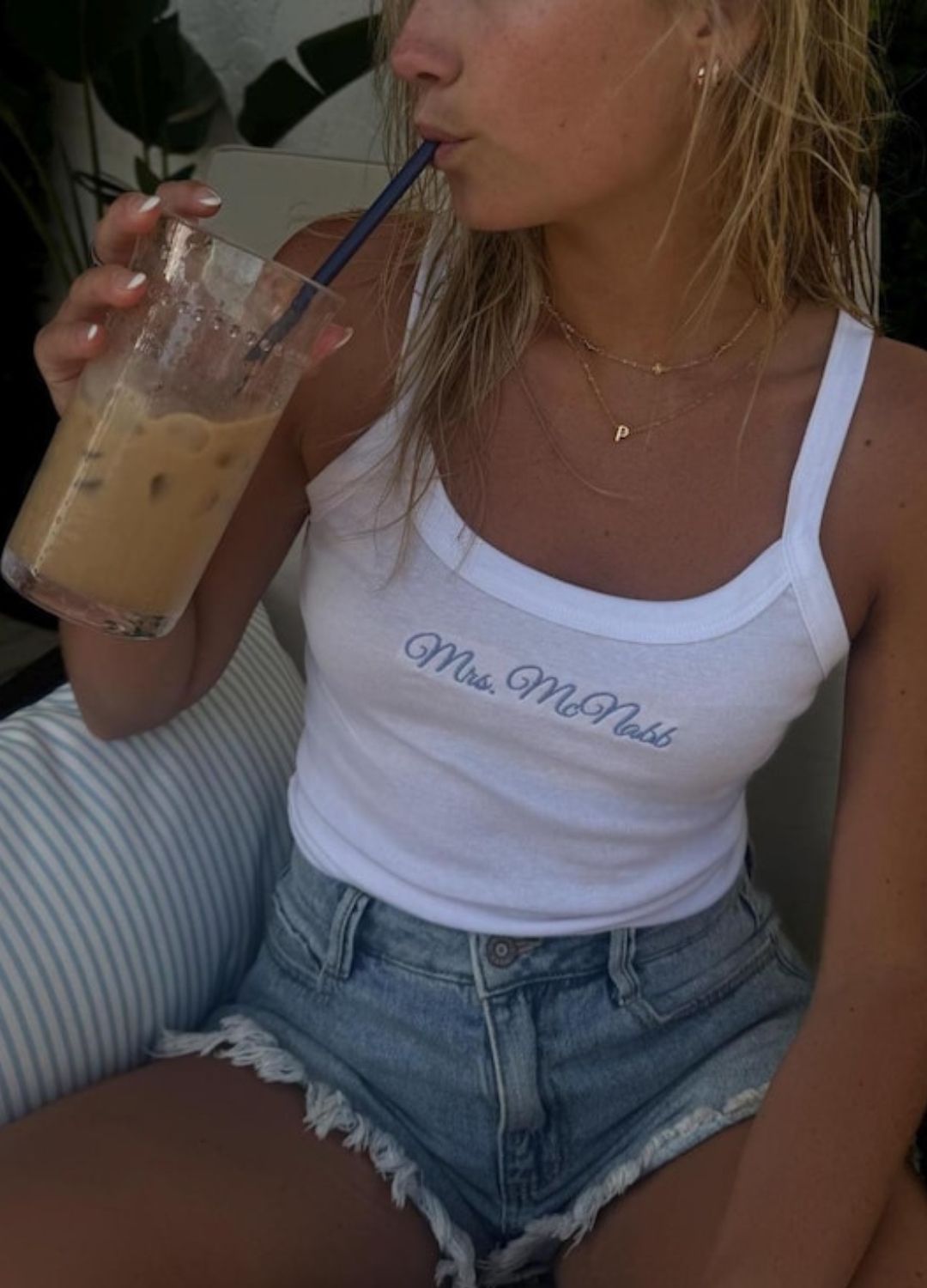
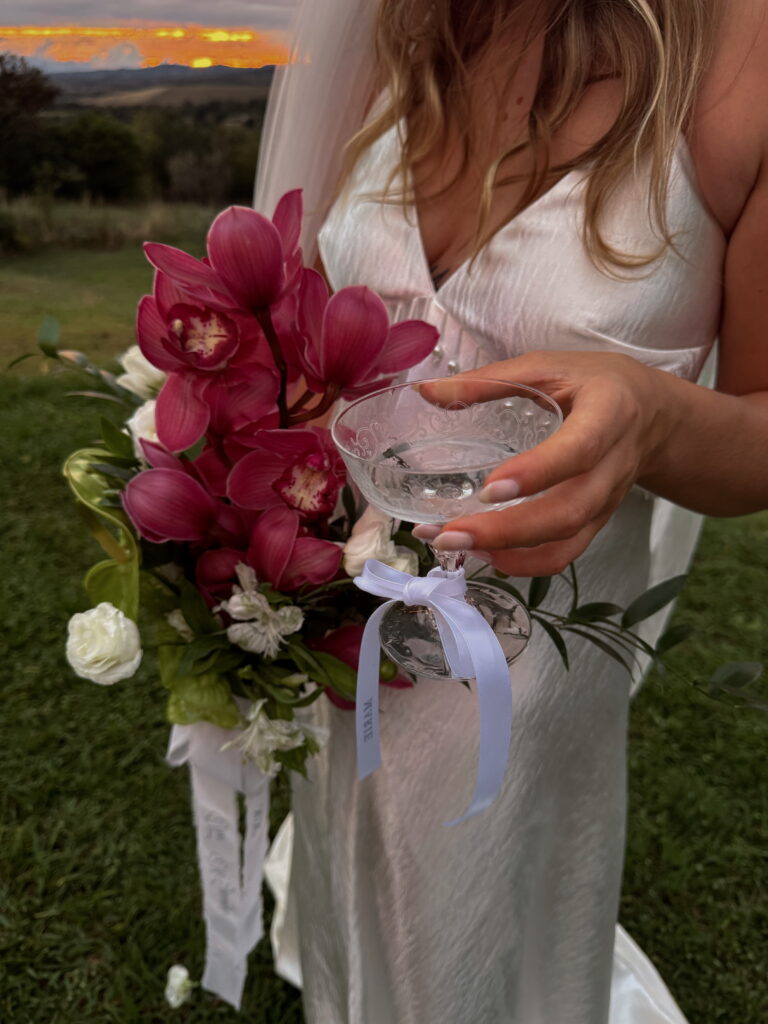
It’s time to get down to the nitty gritty of your Bachelorette party planning… We’re talking about those fun little personal touches that will be remembered forever by your girl gang. The devil is in the details as they say! We love Etsy and have spent many hours looking through their awesome designer’s pages so…
Note: The query card is displayed on the front end using 3:4 aspect ratio. To change the aspect ratio, click on the Card Content section in this query card > Advanced > Custom CSS and change the ratio value there. You need to convert the value by using a forward slash instead of a colon. Example: 16:9 would become 16 / 9.
This note will not display on the front end, but you can delete the Read Me section from this query card once you understand how to change the aspect ratio.
Note: The query card is displayed on the front end using 3:4 aspect ratio. To change the aspect ratio, click on the Card Content section in this query card > Advanced > Custom CSS and change the ratio value there. You need to convert the value by using a forward slash instead of a colon. Example: 16:9 would become 16 / 9.
This note will not display on the front end, but you can delete the Read Me section from this query card once you understand how to change the aspect ratio.
Note: The query card is displayed on the front end using 3:4 aspect ratio. To change the aspect ratio, click on the Card Content section in this query card > Advanced > Custom CSS and change the ratio value there. You need to convert the value by using a forward slash instead of a colon. Example: 16:9 would become 16 / 9.
This note will not display on the front end, but you can delete the Read Me section from this query card once you understand how to change the aspect ratio.
Note: The query card is displayed on the front end using 3:4 aspect ratio. To change the aspect ratio, click on the Card Content section in this query card > Advanced > Custom CSS and change the ratio value there. You need to convert the value by using a forward slash instead of a colon. Example: 16:9 would become 16 / 9.
This note will not display on the front end, but you can delete the Read Me section from this query card once you understand how to change the aspect ratio.
Note: The query card is displayed on the front end using a 16:9 base aspect ratio and scales to fit the post height. To change the aspect ratio, click on the Featured Image section > Advanced > Custom CSS and change the ratio value there. You need to convert the value by using a forward slash instead of a colon. Example: 3:4 would become 3 / 4
This note will not display on the front end, but you can delete the Read Me section from this query card once you understand how to change the aspect ratio.
By babesengaged
Don’t Miss the Next Big Story
Join thousands of readers who never miss a headline.
Don’t Miss the Next Big Story
Join thousands of readers who never miss a headline.